
Microsoft's original Windows Home Server was both crude and groundbreaking. When it debuted, it had limited hardware support, no 64-bit version, and weak built-in capabilities beyond file and app storage. On the other hand, it offered robust backup, reasonable security, and drive extender--a feature that simplified the tasks of adding and pooling hard drives.
Because the original WHS was built on an older server platform, an update was inevitable. Windows Home Server 2011 has now arrived, and with it a bevy of new features--and one key feature of the older version removed. Let's start by looking at why WHS 2011 is a good fit for your home-server needs.
64-bit functionality: Windows Home Server 2011 is 64-bit
only, but it's a welcome upgrade from 32-bit. Using 64-bit addressing lets you add more than 4GB of RAM.
With the original WHS, having a lot of RAM wasn't particularly useful. In fact, some retail WHS boxes shipped with as little as 512MB of RAM, and 1GB was the norm. That first Home Server wasn't very suitable for running apps remotely. Eventually, interesting plugins became available--like Servio, which enabled WHS to be a better media server.
Better media server: Windows Home Server 2011 has robust media transcoding and streaming capabilities, and it supports a wide range of codecs--AAC, AVCHD, DivX, MPEG-2, MPEG-4, WMV, and more. It's now a DLNA 1.5-compliant server, meaning that DLNA-capable client devices can connect to a WHS system set up as a media server. As more HDTVs, A/V receivers, and other similar home electronic devices ship with built-in DLNA client capability, combining a robust media server and a robust PC server in one box becomes increasingly useful.
The original WHS didn't have this capability built-in, so various media server plug-ins were among the most popular WHS plug-ins available. But those aren't needed any longer (though some may have additional features beyond those in WHS 2011.)
Windows 7 HomeGroups: You can add a WHS 2011 box to your HomeGroup, which makes sharing files and printers much easier. The only drawback is that there's setting up shares in this way results in a little granularity. You can have read access, full access, or no access.
Easier login management: Logging in to the first release of WHS was something of a chore. You could make things easier by using the same characters for your system login and for your account login on the server, and then enabling auto-logon on your PC. But setting up that arrangement on multiple PCs was tedious and created a security risk.
WHS 2011 uses an external application, the Dashboard, to separate PC logins from Windows Home Server logins. This allows you to have no login on your desktop PC while maintaining secure access to the server.
Easier server management: Managing the first WHS wasn't especially difficult, but you always had to work through a single, modal screen. With 2011, you get full support for windows on your desktop connected remotely. I ran Windows Update on the server from my desktop PC, and it looked just as it would have if I were running Windows Update on my local PC.
Why Not Use WHS 2011?
If you're comfortably using the current version of Windows Home Server, is upgrading to the new version worth the inevitable pain of adjustment? The answer depends on several things:
- The importance you attach to the new features
- The level of upgrade pain you're willing to live with
- The usefulness to you of Drive Extender
Our assumption here is that you've either built your own WHS box or are a current user of a retail WHS system.
Drive Extender: The one huge feature that Microsoft dropped from WHS 2011 is Drive Extender. That decision has generated reams of complaints from heavy WHS version 1 users.
Drive Extender pooled multiple hard drives into a single large volume. It wasn't
RAID--there was no hardware redundancy, and no improvement in performance. Essentially it was just a way to minimize the hassle of adding hard drives, which didn't have to be the same size, and of managing multiple disk volumes. But it made building huge volumes easy; and if you recorded a lot of media, that could be a big deal.
Though Drive Extender didn't create hardware redundancy as such (nor RAID 1, for example), you could specify duplication for shared folders, and the software would replicate folders on separate drives. That capability simplified the job of adding external drives and configuring them as part of the system.
So if you're wedded to Drive Extender, you might not want to migrate to WHS 2011.
The good news is that third parties are stepping into the fray. The site wegotserved.com reports that at least three third-party drive extender drivers will be available for WHS 2011.
Upgrade pain: If you've been using WHS 1, and you've fully configured it with plugins for serving up media, home-power management, and other features, you may be in no hurry to migrate. That's because upgrades to WHS 2011 from the original aren't simple.
There is no clean upgrade path from WHS 1 to WHS 2011 because the first version of WHS is a 32-bit OS while WHS 2011 is 64-bit. Upgrading entails performing a clean install of the OS onto the system.
This procedure is a little tricky with existing hardware. A number of retail WHS systems were built around Intel Atom CPUs, and many of them didn't support 64-bit addressing, which means that they can
never be upgraded to WHS 2011. The program requires 64-bit support in the CPU.
If you have a 64-bit-capable CPU, you'll have to back up all your data, then install WHS 2011, and then restore the backed-up data. It's time consuming and tedious if you have a lot invested in your current installation.
Now that we understand some of the pros and cons, let's walk through a WHS 2011 installation. This is not an upgrade, but a new install. I've got an existing WHS version 1 box, that I'll eventually phase out, but this makes upgrading to the new system somewhat easier, since I can skip the backup step.
Initial Setup
The hardware used for this installation is built around a Zotac mini-ITX motherboard with an Intel Core i3 530 CPU and 4GB of DDR3 RAM. The system lacks a DVD drive, so we used a Samsung external USB optical drive to handle the installation. This meant making sure that the system BIOS was set up to boot from the USB drive.
The system housed a single unformatted 2TB Western Digital GreenPower drive. The entire process went smoothly at the beginning, and if you've ever run Windows Setup, you won't find much different in the Windows Home Server routine. But we hit a snag at the end of the automated process: The system didn't have a built-in driver for the gigabit ethernet controller. That missing ingredient generated an error message, which resulted in a reboot, which led to the same problem and error message. In short, Windows Setup had entered an infinite loop.
Escaping this catch-22 is simple. After completing the 'Preparing Desktop' phase, you'll see the 'configuring Windows' screen with a progress bar; at that point, simply press Ctrl-Alt-Delete, open the task manager, and kill the setup process. Windows will unceremoniously dump you to the desktop, at which point you can install the chipset and the network drivers. Unlike in the Windows 7 setup, installing chipset drivers didn't require a reboot.
For us, after that little gotcha, the remainder of the installation process went smoothly. Windows Home Server 2011 configures a single drive into two partitions: a relatively small boot partition, and a larger data drive. Now it's time to configure the first client PC, which will also be the main server management console.
Configuring a Client
You no longer need to use a CD or a thumb drive to configure a client, though you can certainly set a system up using a CD if you want to. Instead, bring up a browser and type the following URL:
http://<homeservername>/connectreplacing
<homeservername> with the name that you assigned to the server during setup. You'll download the WHS connector installer, and then run it.
If you have auto logon configured, you'll be prompted to revert to login-required mode. You don't have to search around for this; the WHS connector app will launch it for you. At that point, you'll have to reboot, and then run the connector setup app again.

 Launchpad is separate from Dashboard, so you can have different logins than your desktop system uses.
Once the WHS connector is installed, you'll run the Launchpad app. The first time you do this, you actually run the Windows Home Server dashboard. After you've set up WHS, Launchpad and Dashboard are two different animals. You should set up a user account that is
not the same as the system administrator account, and give it a different password. This will allow you to work just with your own file shares. You can always launch Dashboard from Launchpad.
 The new admin Dashboard for WHS 2011 looks much like the old one.
This separation of the WHS user login, your local system login, and the WHS server admin login simplifies matters considerably. You no longer need a client login if you're dealing with a simple home network where you trust all your family members--but sometimes it's best to be cautious.
You'll also want to configure global server settings, which we will discuss under three headings.
 Configuring the streaming quality depends on your CPU performance. Media server and media streaming capabilities:
 The tricky part here is to figure out streaming quality, which depends on the performance of your CPU; unfortunately, figuring out which setting to use is difficult. If you click on the 'Common processors and the profiles that they support' link, you'll get a Web page that tells you which Windows Experience CPU Index is suitable for which quality level. But you get no other clues, since WHS 2011 doesn't implement WEI. Instead, the refrence page suggests that you "find a system that's running the same CPU and use that WEI." That advice is about as dumb as it seems. If you're using a Core i3 or better, you can probably safely adjust the setting to 'Best'.
 WHS 2011 can be part of a Windows 7 HomeGroup. HomeGroup setup for Windows 7 users:
 All this means is that you add the WHS system to your Windows HomeGroup, which simplifies access to the server.
 You can use your own domain name, but your choice of domain name registrars is limited. Remote access:
 You no longer have to use the Microsoft homeserver site, though you can use it if you like. If you have a domain of your own, you can make the WHS system part of that for remote access, but your choice of domain name providers is limited to GoDaddy.com and eNomCentral.com. If your domain isn't registered with one of those providers, you'll have to transfer your domain name to them in order to use it.
Assuming that you have other client PCs to configure, you'll need to set those up next; but with your newly acquired experience, you should have no problems doing that.
 You'll want a separate account for each user.
The next thing you need to do is set up user accounts for each person on your home network. This is a pretty simple job, and it should take very little time on each system that you install the WHS connector software on. Note that WHS 2011 now defaults to weak passwords, so if you want stronger passwords, you'll have to change the policy.
Backups
One key feature of Windows Home Server is its backup capability. You can set up backup schedules, specify which files and folders to back up, and start backups manually as needed. If you need different backup configurations from the default one, you must make those changes via Dashboard. Individual users cannot make changes to their own backup policies through Launchpad.
 You configure backups from the Dashboard.
Since WHS 2011 doesn't support GPT partitioned drives, you can't use the newer 3TB hard drives unless you have a special driver. Your client system can use GPT drives, which you can back up on a file-by-file basis, but restoring files to the GPT volume appears not to be implemented. As a result, you'll have to copy to an intermediate volume first.
That pretty much covers all of the steps involved in performing a basic WHS installation and configuration. You may have to do more for your particular installation--for example, you may have to point DLNA clients to the new server, or find add-ins (such as the third-party drive replacements add-ins). At this point, though, you have all of the basics set up and ready to go.

 You know, back in my day, each household had one Internet connection, and one computer connected to it. None of this Internet-sharing-wireless-router jibber-jabber. If you wanted to browse the Web, print something, listen to MP3s, or anything else, you used that computer. Now, the first thing every house guest asks after they take off their coat is "So, what's your Wi-Fi password?" The nerve!
  With the holidays come house guests, and those house guests often bring smartphones, media players, tablets, laptops, and e-readers -- all with a Wi-Fi connection. But even hardened PC veterans who crimp their own Ethernet cables don't always manage their Wi-Fi network that well. That's why we've compiled a few handy basic Wi-Fi tutorials that walk you through the basics of securing your network and answer fundamental questions like "Why do I need a router?" and "How safe is my Wi-Fi encryption, really?".


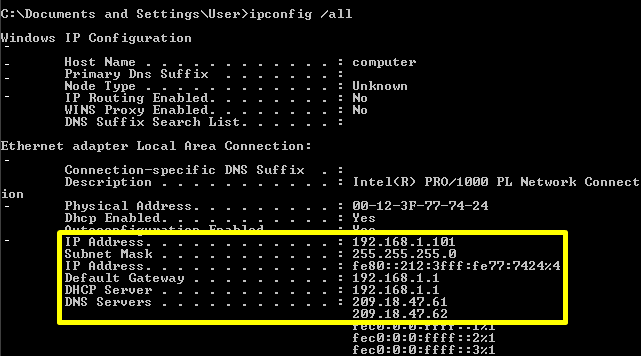
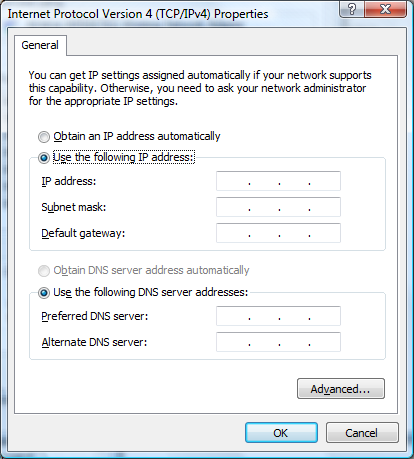
 Chris Beck wants to find out if there are unauthorized users on his wireless network.